
The Ultimate Canva Cheat Sheet to Instantly Speed Up Your Workflow
All the Canva shortcuts & hacks I wish I knew sooner…
If you’re new to Canva, it can be tricky to nail down the flow of it. And even if you’ve been using Canva for awhile, you’re probably thinking to yourself “is this the right way to do this?” or “there’s gotta be a better way to do this.”
And that’s exactly why I’m making this post—it’ll be your save-for-later, come-back-when-you’re-overwhelmed, oh-that’s-how-you-do-it guide… no matter if you’re new to Canva or a seasoned user, there’s some great tips for you to learn here.
So, let’s dive into the best time saving shortcuts and secret gems of Canva!
Colors: my most favorite panel that no one knows about
Did you know you can edit the individual colors in your photos? It’s a great way to truly customize images to fit your brand. The color panel one of Canva’s most powerful tools and DEFINITELY one of those gems that is often ignored. In fact, I optimize each Shamblen Studios template to work seamlessly with this feature! If you’re not already adjusting the colors in your images to match your brand, now is the perfect time to start :)
How to access it
Click on your image
Go to Edit > Adjust > Color Edit
Click the color you want to adjust, then move the sliders to customize it
It’s the easiest way to completely transform a photo to match your brand and keep all your content cohesive.
BONUS TIP: Use the Color Edit feature to quickly batch your content. I love making lots of different versions for fresh Pinterest pins or animations for Instagram Reels!
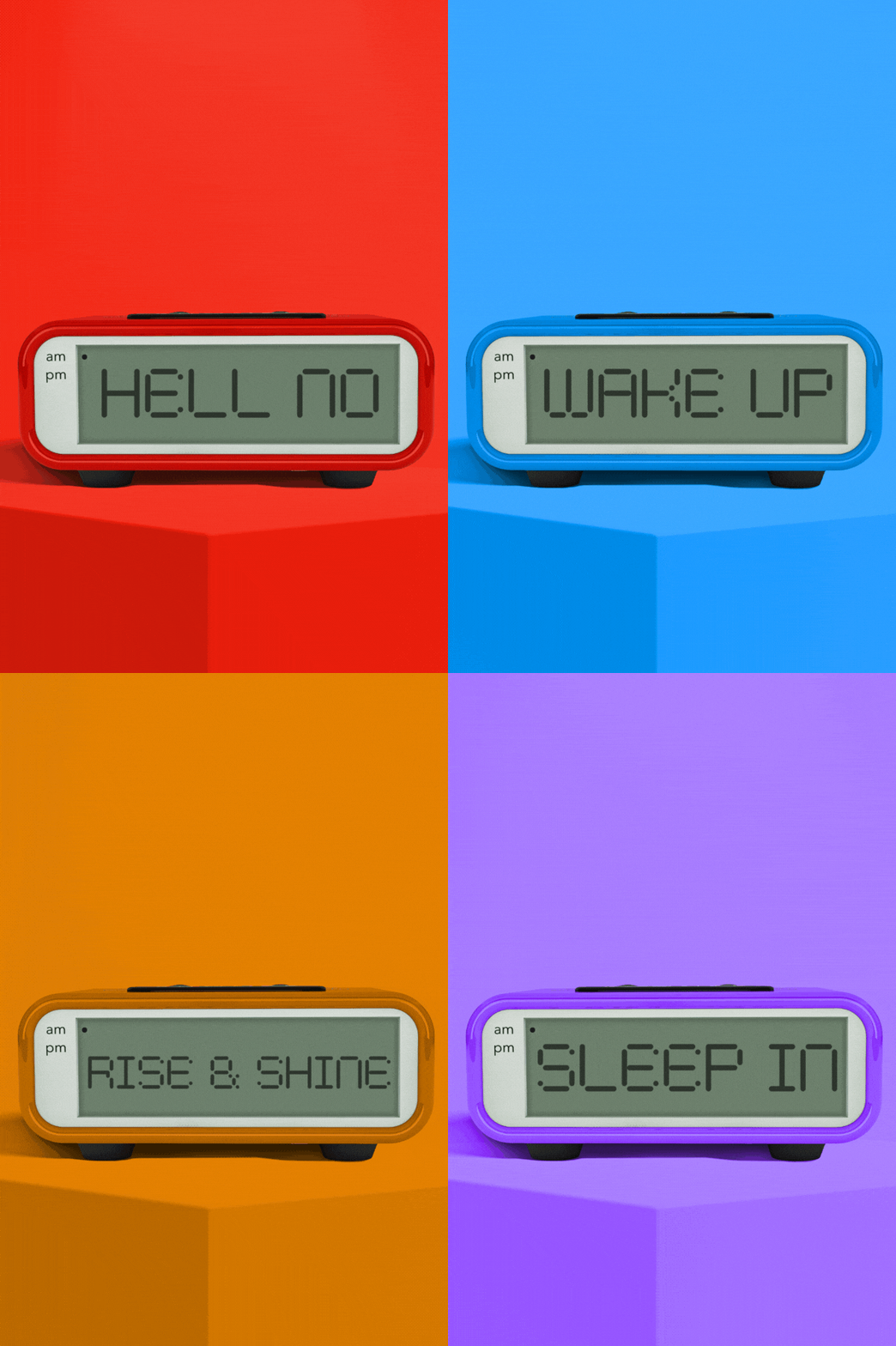
Use Canva’s Color Edit to create fun animations like this for your social media content!
Layers: finally, you can stop playing whack-a-mole with your elements
If you’re ever screamed in frustration “why tf can’t I click this thing?” then the Layers panel is for you, my friend.
Sometimes in your designs you’ll run into elements stacked on top of each other. It’s a cool way to make some dynamic effects, but not so cool if you can’t seem to highlight that thing you need to move.
How to use the Layers panel
Click on any element in your design to bring up your toolbar (if it isn’t already showing for you)
At the top right of the toolbar, click Position
In the panel on the left, tap over to Layers
Here, you’ll see everything that’s in your document. The layers at the top are the ones that are most forward in your design. So, if you’re looking for that tricky item behind everything, go to the bottom of the layers and click on it. It’ll highlight it on your canvas so you can move it around or resize it.
If you want to move its position in your document, simply drag that layer up or down to bring it to the front or push it to the back.
The Canva’s layer panel is great because it allows you to select hidden or overlapping objects and rearrange your designs cleanly.
BONUS TIP: Once you’re happy with the placement of an object, lock it by right clicking the layer and hitting Lock (to fully freeze an element) or Lock Position (to keep the object in its place with the ability to swap the text or image).
Templates: have the hard work done for you
Honestly? Sometimes the fastest Canva hack isn't a shortcut or a keyboard trick—it's just starting with something that's already beautifully designed.
That's where templates come in. Skip the blank canvas, skip the "why does this look so off" spiral, and start with a base that's already doing the heavy lifting. All you have to do is swap your text, tweak the colors to match your brand, and you're basically done. (See: Color Edit panel, above. It was made for this.)
Here are three of my most-grabbed templates right now:
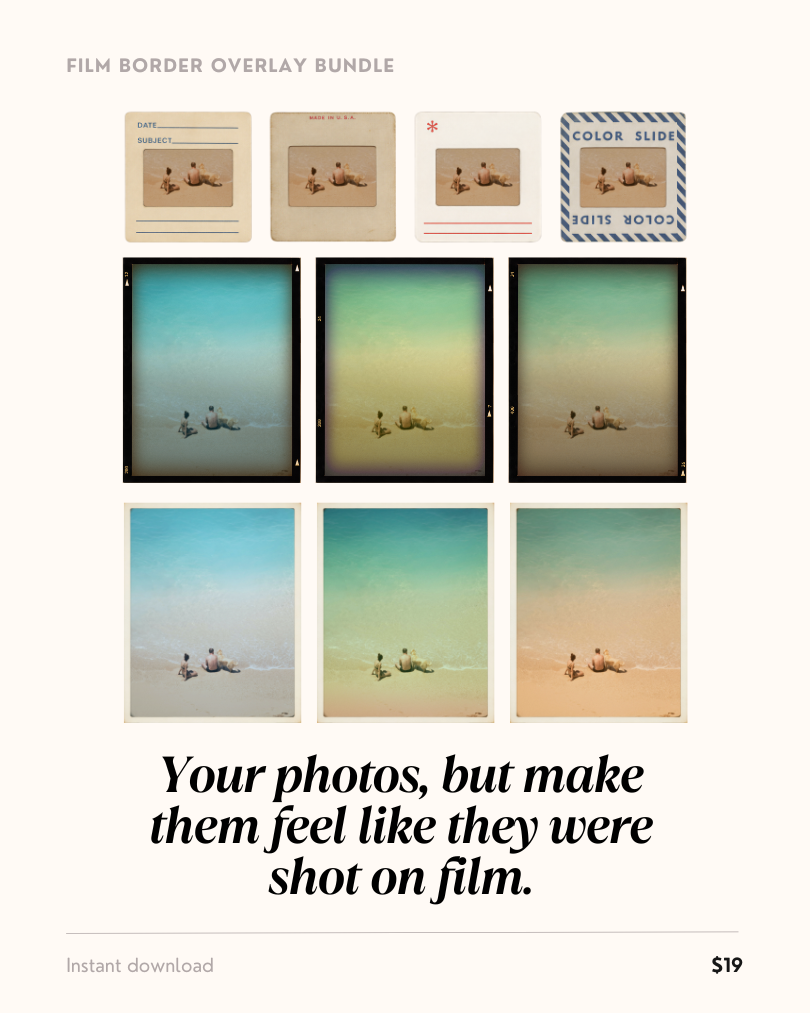
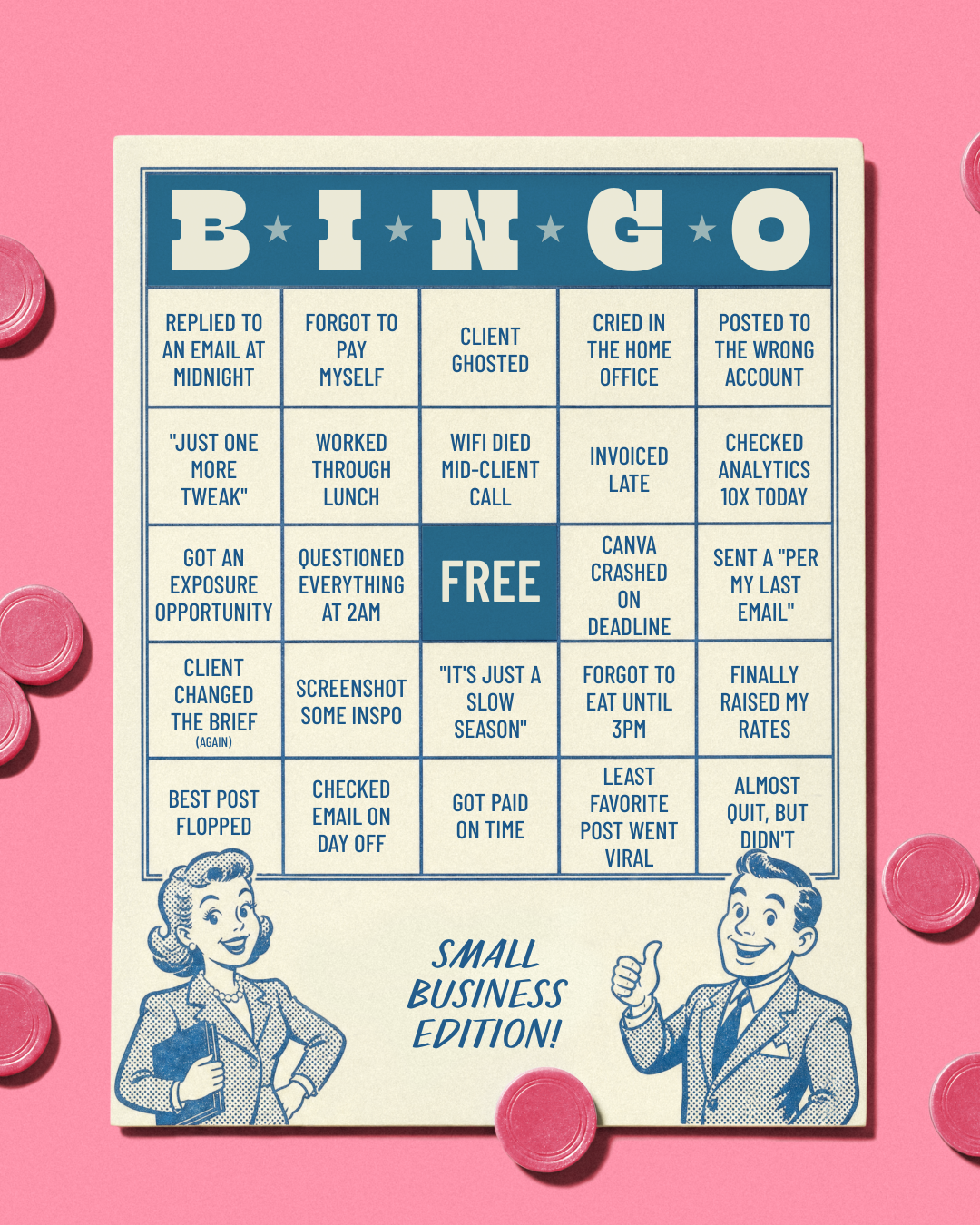
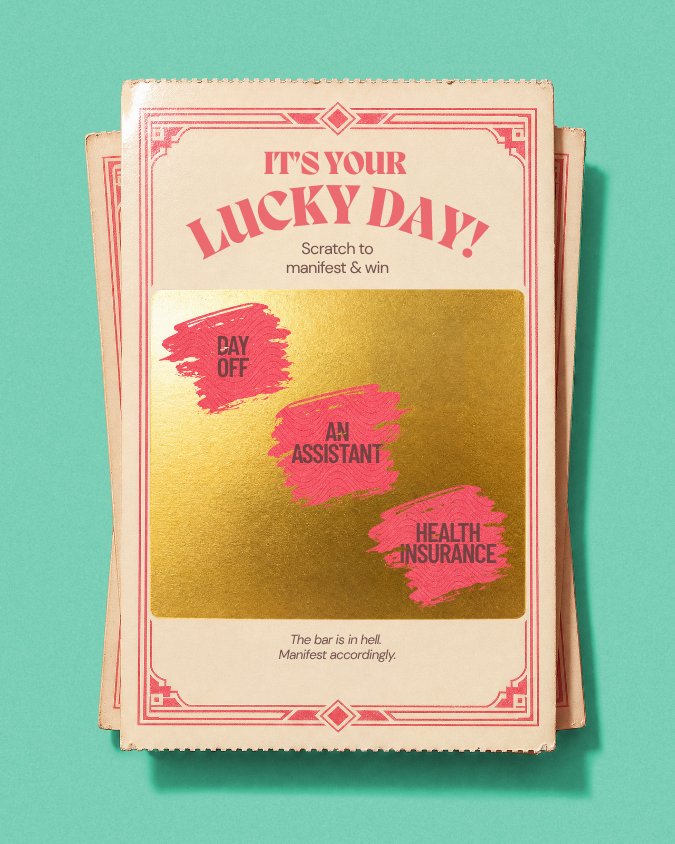
Each one is $9 and opens directly in Canva. Not ready to commit? Browse the full shop here — there's something for pretty much every vibe.
Shortcuts: make your workflow suuuper efficient
Anyone who’s in command of a program knows the shortcuts. It makes your life both easier and quicker, saving lots of time in the long run. You’re probably familiar with the classic cmd + v to paste text, but there’s lots more you can use to speed up your content workflow. Here’s a comprehensive list worth memorizing:
Selection & Movement
cmd/ctrl + click — select multiple objects
shift + click — add/remove elements from your selection
arrow keys — nudge elements ever so slightly for precise control
shift + arrow keys — move those elements faster
Grouping & Arranging
cmd/ctrl + G — group elements together
cmd/ctrl + shift + G — ungroup elements
cmd/ctrl + ] — bring an element forward (one layer at a time)
cmd/ctrl + [ — send an element backward (one layer at a time)
cmd/ctrl + shift + ] — bring an element entirely to the front
cmd/ctrl + shift + [ — move an element entirely to the back
Copying & Duplicating
cmd/ctrl + C — make a copy of an object
cmd/ctrl + V — paste an object
cmd/ctrl + D — duplicate
option/alt + drag — duplicate while moving an object
Zoom & View
cmd/ctrl + + — zoom in
cmd/ctrl + - — zoom out
cmd/ctrl + 0 — fit your design to screen
Undo
cmd/ctrl + Z — undo
cmd/ctrl + shift + Z — redo the last action you undid
Even if you only memorize 5 of these, your time spent creating content will drop dramatically. Muscle memory is real, and your schedule will be greatly rewarded for it :)
Canva apps: little power-ups for your content
If Canva feels like it can almost do what you want but not quite, then there’s a good chance the solution already exists inside Canva! You just haven’t installed it yet ;)
Canva has a huge ecosystem of apps built directly into the platform. Think animation tools, mockups, charts, effects, and speciality design tools. They’re all designed to extend what Canva can do without you ever leaving your design… and this is where creative freedom really opens up!
What Canva apps actually are
Apps are simply add-ons that live inside Canva. They don’t clutter your workspace unless you specifically choose to use them, and many are completely free (or have generous free versions).
There isn’t one right app; there’s dozens, and that’s the point. Canva lets your build your version of the toolset. Browse the ones that work best for you and try ‘em out!
How to find & install a Canva app
Installing an app takes about 10 seconds:
Open any design
Click Apps in the left sidebar
Browse or search by keyword (for example: ‘pixel’ if you need a retro effect)
Click an app > hit Open to start using it
Once installed, the app lives in your Apps panel at the side and is ready whenever you need it!
How to use apps without overwhelming yourself
Canva apps are super fun, but you don’t need ALL the apps. You just need one app for one problem.
Add an app. Try it. Keep it if it helps. Ignore the rest.
If you need to remove an app, just click the three dots in the top right corner of it and hit Remove from your apps to keep things more organized.
That’s how you keep your Canva workflow simple and powerful at the same time.
BONUS TIP: my favorite go-to apps are the Reshape app (to add perspective to your elements), Liquify (to add some funky effects to your images), and Texture (to add grain, grit, and other super cool effects).

Don’t be a victim of bad organization—keep those files tidy!
Organization: the unsexy thing that saves hours
This really is the boring part that nobody wants to do, yet everyone wishes they did.
Shockingly, the average person spends about 20% of their workweek searching for files! That’s a whole lot of time wasted, and working in Canva is no exception. So let’s fix that.
A folder structure that actually works
Inside Canva, I recommend folders like:
Brand photos (store all your images in one place and create sub-folders as necessary: December Brand Shoot, Product Shoot, etc.)
Templates (I always tell my Shamblen Studios members to keep your backup templates here and duplicate them in the following folders as needed—that way you can always reference the original!)
Social content (and inside that, folders for each platform: Instagram, Pinterest, TikTok, etc.)
Marketing (with folders for Blog Posts & Email Campaigns)
Archive (any old stuff that you don’t want to delete)
The key is to create categories that make sense for your business and that you’ll actually remember, not just some aspirational perfection. We want to make sure we use these folders :)
Naming conventions: don’t betray future you!
Always rename your photos! When you’re in a pinch, they’ll be much easier to find in that search bar.
How to rename your uploads
While in your design, go to your Uploads folder on the left.
Hover over the element you want to rename, click on the three dots, and tap the pencil icon next to the name to type in your new name
Instead of names like:
final
final-final
FINAL_use_this_one
Try:
instagram-quote-blue-v1
brand-photo-neutral-flatlay
pinterest-pin-workflow-tips
What to include:
Platform or purpose
Color or style
Version number
Why is this important? Because each time you search for an image or graphic, the name of the file is what will show up in the search. Use words that make sense to you and know you’ll reference later.
If you’re regularly uploading photos or graphics, it’s good practice to rename them immediately and use naming conventions by function instead of dates. Dates feel organized… until you’re trying to find “that one image” 3 months later.
Keep this page handy or grab the Canva Cheat Sheet below for easy reference—I promise you’ll save lots of time with your content creation!
Save this page: why this cheat sheet matters for you
Content creation isn’t just about making things look good, but it’s about speed, consistency, efficiency, and confidence.
When your tools work with you instead of against you, creating content stops feeling heavy. You show up more. You reuse smarter. You tweak instead of starting from scratch.
And suddenly… your marketing feels doable again :)
Bookmark this page. Pin it. Come back when Canva is feeling hectic for you. These are the fundamentals that compound every single time you design something new.
Inspired by a New Mexico road trip with my two pups and zero plans.
Most Canva templates look like they were made at a desk. These were made after a trip that broke my brain in the best way… dusty roads, desert skies, and two very good pups in the back seat.
A vintage gas pump, a gas station sign, a welcome sign, a license plate, and a high risk warning sign… five road trip visuals with built-in personality, so your post does the talking before anyone reads the caption.
Works for travel content, life updates, business announcements, relatable humor—anything that deserves a lil' colorful Americana!
What you get: 5 Canva templates · Instagram post formats · instant download · full customization · commercial use included
Go ahead, crank up that roadtrip playlist and get goin’.